 By Claire Whitaker
Updated November 2026
An audio technica headphone adapter lets you connect Audio-Technica headphones to devices that use a different plug, jack or connection standard. In this guide, you will learn how to identify the plug type your headphones and source use, how to choose an adapter that keeps the sound clean, how to test the connection, and how to avoid the mistakes that cause crackling, low volume or no sound at all.
Step 1: Identify Your Headphone Connector and Cable
Before you buy anything, confirm exactly what your headphones use. Audio-Technica makes a wide range of models, and the connector differs by product family. Most over-ear and on-ear models use a 3.5 mm (1/8-inch) stereo plug, while many studio and professional models use a 6.35 mm (1/4-inch) stereo plug. A subset of models uses a detachable cable with a proprietary or locking connector at the earcup, and some are sold with a separate balanced cable. Check the product manual or the spec sheet on Audio-Technica’s website for the listed input jack.
Shopping for one? See our guide: 5 Best Headphone Audio Jack Adapter Picks for Every Need (2026).
Next, identify the output on the device you want to connect to. Common options include:
- A 3.5 mm headphone jack (smartphones, laptops, portable players)
- A 6.35 mm jack (mixers, guitar amps, pro audio interfaces)
- A USB-C port (newer Android phones, some laptops, tablets)
- A Lightning port (older iPhones)
- RCA outputs (home stereo receivers, TVs, turntable preamps)
Write down both connections. Matching the two is the whole job of the adapter.
Step 2: Match the Adapter Type to Your Setup
Once you know your two connection types, choose the adapter category. The most common matches are shown below.
| Your headphones | Your source | Adapter type needed |
|---|---|---|
| 3.5 mm plug | 6.35 mm jack | 3.5 mm female to 6.35 mm male adapter |
| 6.35 mm plug | 3.5 mm jack | 6.35 mm female to 3.5 mm male adapter |
| 3.5 mm plug | USB-C port | USB-C to 3.5 mm adapter (with or without built-in DAC) |
| 3.5 mm plug | Lightning port | Lightning to 3.5 mm adapter |
| 3.5 mm plug | RCA outputs | RCA to 3.5 mm headphone adapter or cable |
| 3.5 mm plug | Wireless only (Bluetooth) | Bluetooth transmitter with 3.5 mm output |
If your source only has a single output and you want to use it with a different headphone standard, check whether you need a plain passive adapter or one with active electronics. For a deeper look at the active side, see Usb-C Headphone Adapter with DAC: 5 Best Picks for Every Phone (2026).
Step 3: Decide Between Passive and Active Adapters
A passive adapter is essentially a wired connector. It routes the signal from one plug to another without changing it. These work well when your source already has enough power and a proper analog output, such as a 3.5 mm jack on a laptop. They are simple, light and rarely fail.
An active adapter contains a digital-to-analog converter (DAC) and sometimes a small amplifier. These are useful when the source is digital-only, such as a USB-C port on a phone without a headphone jack, or when the source output is weak and your headphones need more drive. Audio-Technica’s higher-impedance models in particular may sound quiet or thin from a phone output without an amp.
As a rule of thumb, choose a passive adapter for simple analog-to-analog jobs and an active one when you are converting from digital or need more volume headroom.
Step 4: Check Impedance and Power Requirements
Headphone impedance is measured in ohms, and Audio-Technica lists it in each product’s specifications. Lower-impedance models (roughly under 50 ohms) work well with nearly any source. Higher-impedance models, which some studio and open-back designs use, typically need more voltage to reach comfortable loudness. If your headphones are rated at a high impedance and your adapter has no amplification, expect to turn the volume higher than normal and watch for distortion.
If you are unsure, start with the source volume at about half and increase gradually. Stop if you hear harshness or distortion at moderate levels. Protect your hearing by keeping listening volume at a level where you can still hold a conversation comfortably; the World Health Organization and the U.S. National Institute on Deafness and Other Communication Disorders both recommend limiting prolonged exposure to loud sound. Consult a professional audiologist if you notice ringing or hearing changes.
Step 5: Test the Connection Before You Rely on It
Once you have your adapter, run a quick test before using it for a long session or an important call.
- Set the source volume to a low level before plugging in.
- Connect the adapter firmly to the source, then attach the headphones.
- Play a stereo test track and confirm both channels are working. Left and right should both be audible when you check each earcup.
- Gently wiggle the cable and the adapter joints. Crackling or dropouts usually point to a loose connection or damaged contacts.
- If you use a microphone, make a short test call or recording to confirm the mic input works as expected.
If something goes wrong, Why Is My Headphone Adapter Not Working? A Step-by-Step Fix Guide walks through the most common causes in order.
Step 6: Handle Microphones and Controls Correctly
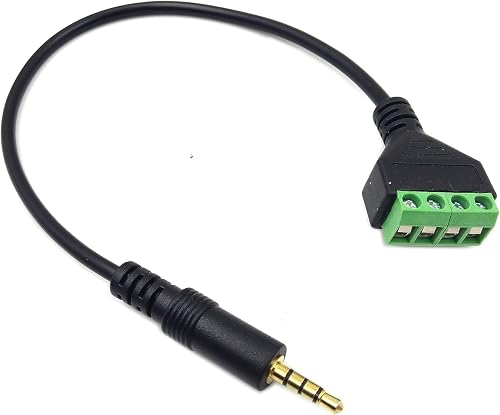
Many Audio-Technica headphones include an inline microphone or a three-ring plug that carries left, right, ground and mic signals. A standard two-ring adapter will not carry the mic signal. If you need voice input, look for an adapter explicitly labeled as supporting a four-conductor (TRRS) plug, and confirm the wiring matches your phone or computer. A plain stereo adapter will give you audio output only.
Inline remote buttons follow the same logic. They need the correct conductor layout to work. If the play or call button does nothing after you switch adapters, the wiring standard is the most likely cause.
Recommended gear
- Passive 3.5 mm to 1/4-inch adapter: A simple metal-bodied converter lets you use a 3.5 mm headphone plug on a mixer or studio interface. Sturdy metal shells tend to hold up better to repeated plugging. View on Amazon
- USB-C to 3.5 mm adapter with DAC: For phones without a headphone jack, an adapter with a built-in DAC provides cleaner output and more volume than a basic passive plug. View on Amazon
- Bluetooth transmitter with 3.5 mm output: If you want to send audio from a TV or older device wirelessly to your headphones, a transmitter with a 3.5 mm output can connect the source to your wired models. View on Amazon
- RCA to 3.5 mm stereo cable: For home stereo receivers and TVs with RCA outputs, a short cable with a 3.5 mm plug lets you use your headphones without extra electronics. View on Amazon
Common mistakes
- Assuming a 6.35 mm plug and a 3.5 mm plug are interchangeable. They are different sizes, and forcing one into the other can damage the jack.
- Buying a passive adapter for a digital-only port. A USB-C or Lightning port needs a DAC to produce analog audio.
- Expecting a basic adapter to carry microphone signals. Mic support requires a TRRS-compatible design.
- Cranking the volume to compensate for weak output. This can cause distortion and hearing strain.
- Leaving the adapter plugged into a jack under strain. Use a short extension or support the cable to reduce wear on the connector.
Tips for a longer-lasting setup
- Keep the adapter in a small pouch when traveling so the pins are not bent or dirty.
- Clean contacts gently with a dry cloth or compressed air if audio cuts out intermittently.
- Label adapters if you own several so you can match them quickly to each device.
- Check Audio-Technica’s product support page for firmware or cable updates on models that include electronics.
FAQ
Do I need a DAC with an audio technica headphone adapter?
Not always. If your source has a standard analog headphone output, a passive adapter is usually enough. A DAC is needed when the source is digital-only, such as a USB-C port, or when your headphones need more power than the source can deliver.
Will an adapter reduce sound quality?
A well-made passive adapter adds very little degradation because it carries the signal without conversion. Active adapters with a DAC can sound better than the phone’s own output in some cases, but results depend on the specific device and headphones. Quality of the connector and cable also matters.
Can I use an adapter to get microphone input?
Yes, but only with an adapter designed for a four-conductor (TRRS) connection and matching wiring. Standard stereo adapters do not carry mic signals.
Why are my Audio-Technica headphones quiet with an adapter?
Higher-impedance models need more voltage. Check the impedance in the product specifications, and consider an adapter with an amplifier or a source with more output power.
Is a 6.35 mm to 3.5 mm adapter safe to use every day?
Yes, for normal use. Metal-bodied adapters tend to last longer than plastic ones. Avoid bending the joint, and keep the connection supported when you move around.
Why does my adapter crackle when I move?
A worn or loose connection is the usual cause. Clean the contacts, reseat the plug, and check the cable for internal damage. Replacing the adapter often solves the problem.
Can I use a headphone adapter on a TV?
Often yes, if the TV has a headphone jack or RCA output. If it has only optical or HDMI output, you will need a converter or a Bluetooth transmitter. For wireless options, see Top 5 Bluetooth Headphone Adapter TV Picks for Every Setup.
Do I need to set the volume differently after adding an adapter?
Usually yes. Adapters can change the effective level, so start low each time you switch configurations and raise the volume gradually. This protects both your gear and your hearing.
Conclusion
A good audio technica headphone adapter starts with identifying your headphone plug and your source output, then choosing between passive and active designs based on impedance and whether the source is analog or digital. Test the connection at low volume before relying on it, and confirm microphone support if you need voice input. With the right match and a careful setup, your Audio-Technica headphones can work reliably across nearly any device.
Related reading
Ready to choose one?
About Claire Whitaker
Claire Whitaker is part of our editorial team and reviews and edits our headphone comfort & accessories + gaming headsets guides, checking product details against manufacturer specifications and owner feedback.