 By Claire Whitaker
Updated November 2026
If your iPhone headphone adapter plays music fine but goes silent when you answer a call, the problem is almost always one of three things: a dirty or partly inserted plug, a microphone contact that isn’t reading correctly, or a software setting that is routing audio to the wrong place. This guide walks through each cause in order, starting with the quickest checks and moving toward hardware fixes. By the end, you should know whether your adapter can be repaired or whether it is time to replace it.
Why an iPhone Headphone Adapter Stops Working on Calls
A standard 3.5 mm headset plug carries up to four signals on a TRRS connector: left audio, right audio, ground, and microphone. Calls depend on the microphone line and on the iPhone correctly detecting that a headset with a mic is attached. When the iPhone fails to detect the mic, it can still send music to the speakers in your headphones but route call audio to the phone’s built-in speaker and mic instead. That is why many people hear the other caller through their earbuds for a moment, then lose audio entirely.
Shopping for one? See our guide: 7 Best Usb-c to 3.5mm Headphone Jack Adapters for Music and Calls (2026).
Most failures fall into one of these groups:
- Physical contact problems, such as lint, corrosion, or a worn ring on the plug
- Adapter problems, such as a broken wire near the strain relief or a failed internal connection
- iPhone settings or software glitches that misidentify the accessory
- Headphone-side issues, such as a damaged mic wire or a mic that needs a different plug wiring standard
Step 1: Check the Basics Before Changing Anything
Start with the simple checks. They take less than two minutes and fix a surprising share of call problems.
- Push the plug fully into the adapter and into the headphone jack. Listen for a slight click or feel it seat firmly. A partly inserted plug can play music while cutting the mic line.
- Play a voice memo and record for ten seconds. If the recording is silent, the mic path is broken. If the recording is clear, the problem is likely in call routing or the other person’s device.
- Make a test call to a second phone. Confirm whether the other caller can hear you at all.
- Remove any case or dongle stacked between the adapter and the iPhone. Lightning or USB-C adapters that connect through a case can lose contact.
Step 2: Clean the Lightning or USB-C Port and the Adapter Connector
Pocket lint, dust, and debris are common culprits. Lint can sit inside the Lightning port and push contacts out of reach. Use a wooden or plastic toothpick, or a dry non-metallic brush, to gently loosen debris from the port. Avoid metal tools, which can short pins. Do not use liquids inside the port. Blow out loose dust with short bursts of air from a can of compressed air held upright.
Next, inspect the adapter’s Lightning or USB-C end. Look for green or white residue, bent pins, or a loose metal shell. Corrosion often appears after the adapter has been in a damp pocket or exposed to sweat. Compressed air and a dry cloth are the safe first steps.
Step 3: Clean the 3.5 mm Headphone Plug
The 3.5 mm plug has three or four metal rings. Each ring contacts a separate spring inside the jack. Dirt or oxidation on any ring can break the mic line while still letting music through. Wipe the plug with a cloth lightly dampened with isopropyl alcohol at 70% or higher, then let it dry fully. Do not soak the plug or force liquid into the jack.
Also check the jack on the adapter or your headphones. If it feels loose, the spring contacts may be worn. Replacing the adapter is usually more practical than repairing the jack.
Step 4: Check the iPhone’s Audio Routing Settings
Sometimes the hardware is fine and the iPhone is sending call audio to the wrong output. Check these settings:
- Open Control Center and tap the audio card in the top right corner. Make sure your headphones are selected as the output device, not the iPhone speaker.
- During a call, tap the audio route icon and choose your headphones. If the option is missing, the iPhone may not be detecting the accessory.
- Go to Settings, then Bluetooth, and disconnect any Bluetooth headset that may be paired and competing for call audio.
- Check Settings, then Accessibility, then Audio/Visual, and confirm that mono audio and balance are set normally. Balance settings won’t affect the mic, but they can make one earbud seem dead.
Step 5: Restart and Reset Network and Audio Components
A software glitch can keep the iPhone from recognizing a wired headset until the system refreshes. Restart the iPhone first. Then unplug the adapter, wait a few seconds, and reconnect it. If the problem continues, a network settings reset clears saved Bluetooth and routing states without deleting personal data. Go to Settings, then General, then Transfer or Reset iPhone, then Reset, and choose Reset Network Settings. You will need to re-enter Wi-Fi passwords afterward.
Step 6: Test the Adapter and Headphones on Another Device
To find out which part has failed, test the combination on a second device. Connect the adapter to a laptop or a different phone with a headphone jack. Then try the headphones directly on a device with a 3.5 mm jack that supports headset mics. Results point to the cause:
| Test result | Likely cause | Next action |
|---|---|---|
| Mic fails on every device | Headphone mic wire or plug wiring | Replace headphones or use a different cable |
| Mic works on other devices, fails on iPhone | Adapter or iPhone port issue | Clean port, then replace adapter |
| Audio cuts out when adapter moves | Loose internal connection | Replace adapter |
| Mic works only in one orientation of the plug | Plug wiring mismatch (TRS vs TRRS) | Use a TRRS-compatible adapter |
Step 7: Replace the Adapter or Headphones If Needed
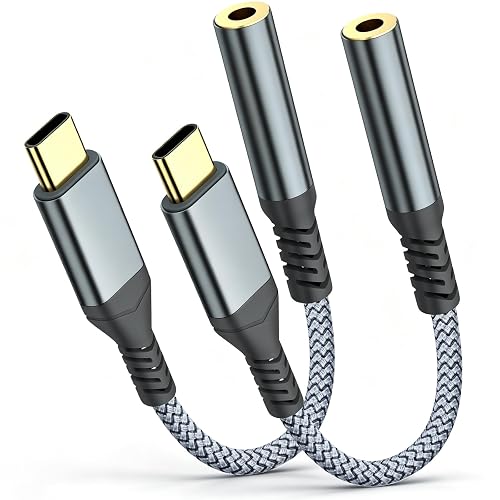
If testing points to the adapter, replacement is usually the fastest fix. Look for a model that explicitly supports headset microphones and is listed as TRRS-compatible. Some budget adapters only pass audio and leave the mic line unconnected, which causes exactly the call problem you are seeing. If the headphones fail on every device, the mic wire inside the cable is likely broken, and a new headset will solve it. You can also read about how adapter designs differ in our guide to Headphone Adapters Explained: 3.5 mm, 6.3 mm and USB-C.
When choosing a replacement, consider whether you need a simple passthrough or an adapter with a built-in DAC. A basic model works for phone calls, while a DAC-equipped model may improve sound but does not automatically fix a mic issue. For a closer look at options, see Lightning to 3.5mm Headphone Adapter Review: Pros and Cons and 6 Best Headphone Adapters for iPhone Picks for Every Need (2026).
Common Mistakes When Troubleshooting
- Pushing a wet or damp adapter into the port. Let it dry completely first.
- Using metal pins, staples, or sharp tools to clean the port, which can damage contacts.
- Assuming the headphones are at fault before testing the adapter on another device.
- Buying a passthrough adapter that does not carry the microphone line, then wondering why calls fail.
- Forgetting to check whether a Bluetooth headset is still connected and taking call audio.
Tips for Keeping Your Adapter Working
- Store the adapter in a small pouch so it does not get crushed against keys or coins.
- Avoid pulling on the cable when unplugging. Grip the plug or adapter body instead.
- Clean the plug and port every few weeks with a dry cloth or compressed air.
- Keep the adapter out of hot cars and damp pockets, which accelerate corrosion.
FAQ
Why does my iPhone play music through headphones but not pick up my voice on calls?
The iPhone can send stereo audio through the left and right channels while the microphone channel is not connected or not recognized. This usually points to a loose plug, a dirty contact, or an adapter that does not support a headset mic.
Will restarting the iPhone fix the problem?
Sometimes. A restart clears temporary software states that can prevent the iPhone from detecting the accessory correctly. If the problem returns, move on to cleaning and hardware testing.
Can a dirty Lightning port cause call audio to fail?
Yes. Lint or debris can prevent the adapter’s pins from seating fully, which may disconnect the mic line while leaving audio playback working.
Do all 3.5 mm headphone adapters support calls?
No. Some adapters only pass audio and do not connect the microphone signal. Look for a product clearly described as supporting headset mics or TRRS connections.
Is it safe to use isopropyl alcohol on the headphone plug?
Isopropyl alcohol at 70% or higher is commonly used to clean electrical contacts when applied with a cloth and allowed to dry fully. Avoid soaking the plug or forcing liquid into the jack.
How do I know if the mic is broken in my headphones?
Test the headphones on another device with a headset-compatible jack. If the mic fails everywhere, the wire or internal contact in the headphones is likely damaged.
When should I contact Apple or a repair technician?
If the port feels loose, the Lightning connector is visibly damaged, or cleaning and replacing the adapter do not help, a technician can inspect the port. Consult a qualified repair professional before attempting any internal repair.
Conclusion
Most iPhone headphone adapter call problems come down to a loose plug, debris in the port, or an adapter that doesn’t carry the microphone line. Work through the steps in order, testing on a second device when needed, and you will usually identify the cause within a few minutes. If the adapter is the culprit, choose a model that explicitly supports headset mics. A clean connection and the right adapter will get your calls working again.
Ready to choose one?
About Claire Whitaker
Claire Whitaker is part of our editorial team and reviews and edits our headphone comfort & accessories + gaming headsets guides, checking product details against manufacturer specifications and owner feedback.