 By Colin Foster
Updated November 2026
A FiiO DAC amp portable unit gives your headphones a cleaner digital-to-analog conversion and enough power to drive them properly when you are away from a desk. This guide walks you through matching the device to your headphones and phone or laptop, setting gain and output correctly, and avoiding the mistakes that quietly cost you sound quality. By the end, you should be able to connect, configure and troubleshoot a portable setup with confidence.
What a Portable FiiO DAC Amp Actually Does
A portable DAC amp does two jobs. The DAC (digital-to-analog converter) turns the digital audio signal from your phone, laptop or music player into an analog signal. The amplifier then raises that signal to a level your headphones can use. Phones and laptops handle both jobs internally, but their converters and output stages are usually built to a price and a size, so the sound often suffers, especially with headphones that need more current or that have lower sensitivity.
Shopping for one? See our guide: 7 Best Portable USB DAC Headphone Amp Picks for Every Need (2026).
Many FiiO portable models are sold as a single small unit that connects inline between your source and headphones. Others are USB dongles that take power and audio from a phone or laptop. The idea is the same in both cases: a dedicated converter and amplifier feeding your headphones a cleaner, more controlled signal.
Step 1: Match the Amp to Your Headphones
Start with your headphones’ impedance and sensitivity. Both numbers are usually listed in the manufacturer’s specifications.
- Low impedance (roughly 16 to 64 ohms): Most in-ear monitors, many wireless headphones and a range of over-ear models will run well from a phone’s output, though a portable amp still improves detail and dynamics.
- Medium impedance (roughly 64 to 150 ohms): These benefit clearly from a dedicated amp, particularly at higher volume.
- High impedance (150 ohms and above): These typically need a unit with enough output voltage and current to reach comfortable levels without distortion.
- Sensitivity: Headphones rated below about 100 dB/mW usually need more gain than low-sensitivity models in the same impedance range.
If your headphones are balanced-capable, check whether the amp offers a balanced output as well. Balanced connections can deliver more power, but only if the headphone cable and plug match.
Step 2: Confirm Your Source Compatibility
Your source determines how you connect and whether the amp gets enough power. Check these before buying or setting up:
| Source | Connection to check | Common issue |
|---|---|---|
| Android phone | USB-C (USB audio or DAC mode) | Phone must support USB audio output; some cases block the port |
| iPhone | Lightning or USB-C with an adapter | Lightning models need a compatible adapter; not all USB-C devices work |
| Laptop or desktop | USB-A or USB-C | Driver or exclusive-mode settings may override the device |
| Dedicated music player | 3.5 mm or 2.5 mm line-in | Volume set too high on the source plus high gain on the amp causes hiss |
If you plan to use the amp with a phone that has no headphone jack, confirm that the DAC accepts digital input over USB and that the phone is listed as compatible in the manufacturer’s notes. Some models also run on a battery and can charge a phone briefly, which can be useful on long trips.
Step 3: Set Gain Correctly
Gain is the single setting most people get wrong. Too little gain forces you to push the source volume to dangerous levels and sometimes reduces dynamic range. Too much gain amplifies background hiss and makes small volume changes feel abrupt.
- Turn the source volume to about 50 to 70 percent.
- Set the amp to its lowest gain setting and raise it slowly until you reach a comfortable listening level at a typical volume.
- Play a quiet passage. If you hear hiss before the music starts, lower the gain one step.
- Avoid using the source at maximum volume. Adjust the amp instead, which usually gives finer control.
- If your amp has a high and low gain switch, use low gain for sensitive in-ears and high gain for demanding over-ears.
Hearing protection matters here. The World Health Organization and many audiologists recommend keeping listening levels moderate and limiting long sessions at high volume. A portable amp can make headphones sound louder with less effort, so keep an eye on your comfort level.
Step 4: Connect, Test and Confirm the Output
Once the physical setup is complete, confirm that the audio path is actually running through the amp.
- On a computer, open your sound settings and select the FiiO device as the output.
- On an Android phone, check that USB audio is recognized and that the phone’s own volume is not muted or set to an alternate output.
- On an iPhone, confirm the adapter is seated fully and that the device appears in the audio output list.
- Play a track with a wide dynamic range and listen for a clean, stable image rather than a thin or compressed sound.
- Check the indicator light if your model has one. Many units change color or blink when a valid signal is detected.
Step 5: Tune for Your Listening Habits
Most FiiO portable amps include a few adjustable features worth testing. Digital filter modes, bass boost or EQ settings, and output impedance options (where available) can change the character of the sound. Make one change at a time and listen to the same track each time. Filter differences are often subtle, so decide based on what sounds more natural to you rather than what sounds more impressive at first listen.
If your headphones have a noticeable bass lift, reducing bass boost on the amp can help. If the sound feels too bright, look for a smoother filter option. Keep a note of your preferred settings for each headphone so switching between pairs is quick.
Step 6: Plan for Portable Use
Portability introduces a few practical concerns. Cables can strain the connector if the amp hangs from a bag or pocket, so use a short cable or a small clip. Battery life drops quickly at high gain and high volume, so keep a charger or power bank in the same bag on long days. If the device gets warm during use, that is normal for a small amplifier, but move it away from direct sunlight and do not cover its vents.
Common Mistakes
- Leaving gain on high with sensitive headphones: This causes hiss and makes volume hard to control.
- Using the phone at full volume: This often increases noise without improving headroom.
- Forgetting to select the amp as the output: The device may appear connected while audio still plays from the phone or laptop speakers.
- Mixing a balanced cable into an unbalanced port: Check plug types before connecting.
- Ignoring driver or app settings on a computer: Exclusive mode or a competing audio app can block the amp.
- Assuming a more expensive setup always sounds better: A well-matched budget model often beats a mismatched premium one.
Tips for Better Results
- Keep the USB cable short and use a sturdy one to reduce interference and connection drops.
- Store the amp in a small pouch to protect the headphone jacks from dust and pocket debris.
- Update your phone’s or laptop’s audio drivers and firmware when the manufacturer releases them.
- If you use the amp at a desk, place it on a stable surface away from power supplies and routers to limit noise pickup.
- For a broader comparison of options, see Portable USB DAC Amp Guide: How to Choose the Right One (7 Steps) alongside Difference Between DAC and Amp: A Clear Guide for Headphone Owners.
If you are weighing a standalone DAC amp against a sound card or a combo unit, Headphone DAC vs Amp (2026): Which Is Better for Your Setup? lays out the trade-offs clearly. Owners who want Bluetooth connectivity may also find Portable DAC Amp Bluetooth: How to Choose and Use One (7 Steps) useful.
Recommended gear
- FiiO KA13: A compact portable DAC and amp often used with phones and laptops. Its small body suits pocket carry, and owners often report that it drives a wide range of in-ear and over-ear headphones. View on Amazon
- FiiO BTR5: A portable unit with Bluetooth and wired inputs, useful when you want one device for both wireless and cable listening. View on Amazon
- Short USB-C to USB-C cable: A short, well-shielded cable reduces strain on the port and helps keep the connection stable during movement. View on Amazon
- Small hard-shell pouch for portable audio: Protects the amp and headphone jacks from pressure and debris in a bag or pocket. View on Amazon
FAQ
Do I need a portable DAC amp if my phone already has a headphone jack?
Not always, but a dedicated amp often improves detail, dynamics and volume control, especially with headphones that have medium or high impedance or lower sensitivity.
Why is my FiiO amp not showing up as an audio output?
Check that the cable is fully seated, that the source supports USB audio, and that the device is selected in your sound settings. On computers, closing other audio apps or disabling exclusive mode can help.
Can a portable DAC amp damage my headphones?
It can if the gain is set high with sensitive headphones at high volume. Starting at low gain and raising it gradually is the safest approach.
Why do I hear hiss when the amp is connected?
High gain combined with a sensitive headphone is the most common cause. Lower the gain setting, reduce the source volume, and check that the cable is not damaged.
Does a portable amp drain my phone battery?
Yes, USB-powered units draw power from the phone, so battery life drops faster, particularly at high gain. A battery-powered unit avoids this.
Is a balanced cable worth using with a FiiO portable amp?
It can be if your amp and headphones both support balanced operation. Confirm the plug type and output rating before connecting, because a mismatch can cause damage.
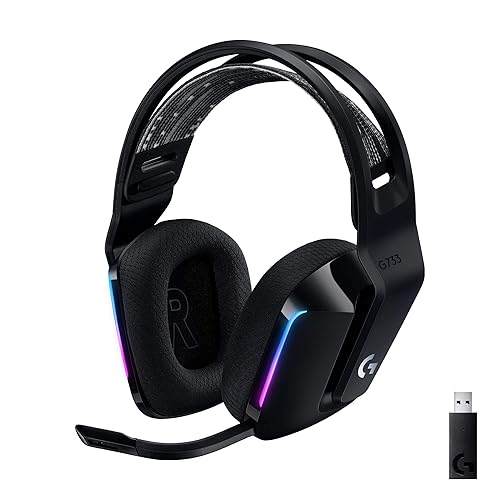
Can I use the amp with a gaming headset?
Generally, no. Most gaming headsets have built-in sound cards and microphones that expect their own interface, so a portable DAC amp is best suited to standard headphones.
Conclusion
A FiiO DAC amp portable setup works best when you match it to your headphones’ impedance and sensitivity, set gain carefully, and confirm the output path before you listen. Small adjustments to filters and gain can make a noticeable difference without any extra hardware. Keep volume moderate to protect your hearing, and revisit your settings when you change headphones or sources.
Related reading
- FiiO K7 DAC Amp: Setup, Features and What to Know Before You Buy
- 7 Best Portable Headphone DAC Amp Options for Every Need (2026)
Ready to choose one?
About Colin Foster
Colin Foster is part of our editorial team and reviews and edits our headphone comfort & accessories + gaming headsets guides, checking product details against manufacturer specifications and owner feedback.