 By Colin Foster
Updated November 2026
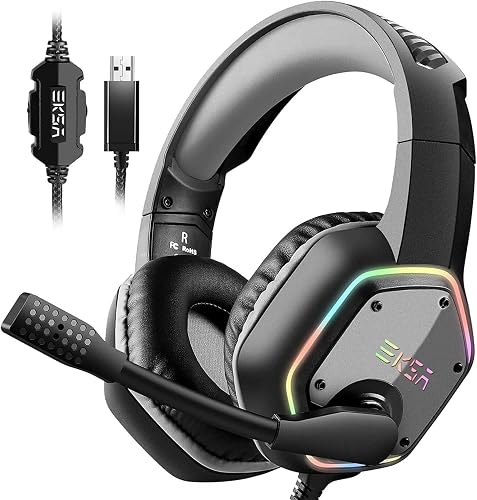
A wireless gaming headset computer setup gives you freedom to move around your desk without cables snagging on the chair or the mouse. This guide walks you through choosing the right connection type, pairing the headset with your PC, and tuning audio so voice chat and game sound stay clear. Most of the work is a few settings in Windows and the headset’s companion software.
Choose the Right Wireless Connection Type
Most wireless gaming headsets for computer use connect in one of two ways. A 2.4 GHz USB dongle is the common choice for gaming because it keeps latency low and holds a steady link. Bluetooth is more convenient for phones and laptops, but it usually adds enough delay to make fast-paced games feel off and can compress voice quality.
Shopping for one? See our guide: Audeze Maxwell Wireless Gaming Headset Review (2026).
Check which connection your headset supports before you buy or set it up. Some models offer both, with a dongle for the PC and Bluetooth for a second device. Manufacturers typically list the wireless standard in the product specifications.
Set Up the Headset on Your PC
- Plug the USB dongle directly into a rear motherboard port rather than a front panel or hub. This reduces dropouts from USB interference.
- Charge the headset fully before first use. Many owners report that a partial charge is enough to start, but the battery can cut out mid-session.
- Power on the headset and confirm the dongle shows a solid light or connected status.
- Open Windows Sound settings and set the headset as both the default playback and recording device.
- Install the manufacturer’s companion app if you want EQ presets, sidetone or mic adjustments. Update the firmware if the app prompts you to.
Tune Audio and Microphone Settings
Once the headset is connected, adjust the microphone level so your voice sits clearly in chat without clipping. In Windows, open the recording tab, select the headset microphone, and check the level while speaking at your normal volume. Keep peaks below the top of the meter. For a deeper look, Best Gaming Headsets for PC and Console: 5 Models Compared covers this in detail.
For game audio, try a stereo or virtual surround mode only after you have a baseline. Many players find that turning off extra effects makes footsteps and directional cues easier to read. Adjust one setting at a time so you know what changed.
| Symptom | Likely cause | Quick fix |
|---|---|---|
| Crackling or dropouts | USB interference or distance | Use a rear port and move the dongle closer |
| Delayed audio | Bluetooth in use | Switch to the 2.4 GHz dongle |
| Teammates say you are quiet | Mic level too low | Raise input gain and recheck |
| Headset cuts out after a while | Low battery | Charge overnight or use a longer session plan |
Plan for Battery Life and Comfort
Battery life varies widely between models, and manufacturers list their own estimates. Plan around that number by charging during breaks or keeping a USB cable nearby. If you play long sessions, a comfortable headband and well-sealed ear cushions reduce the pressure that leads people to adjust the headset constantly. For more on fit, see Gaming Headset Comfort for Long Sessions.
Recommended gear
- A USB extension cable for the dongle. It lets you position the receiver closer to your seat, which can improve signal stability on a crowded desk. View on Amazon
- A headset stand. It keeps the headset off the desk when you step away and protects the earcups from wear. View on Amazon
- A spare charging cable. A second cable lets you charge the headset at one station while using it at another. View on Amazon
Common Mistakes and Tips
- Using a USB hub or front port for the dongle, which often causes intermittent static.
- Leaving Bluetooth on when you want low-latency gaming audio.
- Skipping firmware updates that can fix connection stability.
- Ignoring mic placement. Keep the boom about a finger’s width from the corner of your mouth.
- Comparing models on features alone. For a broader look at options, see 7 Best Top Wireless Gaming Headset Picks Compared for 2026.
FAQ
Does a wireless gaming headset computer setup add noticeable lag?
Dedicated 2.4 GHz wireless headsets are designed to keep latency low for gaming, though exact figures depend on the model. Bluetooth typically adds more delay, so the dongle is the better choice for competitive play.
Can I use a wireless gaming headset with a PC that has no Bluetooth?
Yes, if the headset includes a USB dongle. The dongle works without Bluetooth on the computer, which is why it is the most common setup for desktops.
How do I know if my wireless headset is connected correctly?
Check that the dongle or headset light is solid and that Windows lists the headset as the default playback and recording device. If audio is still missing, restart the PC and reconnect the dongle.
Conclusion
A wireless gaming headset computer setup is straightforward once you pick the right connection type and set the headset as your default audio device. Tune the microphone and game audio one change at a time, and keep the dongle close to the PC. Check the official manufacturer site for current firmware and support details.
Related reading
- Steelseries Arctis Nova Pro Wireless Gaming Headset: Setup, Fit and Fixes (2026)
- 7 Best Computer Headsets for Gaming Picks Compared for 2026
- 5 Best Headsets for Computer Gaming: Top Picks Compared (2026)
- What's a Good Gaming Headset? 7 Best Picks Compared for 2026
Ready to choose one?
About Colin Foster
Colin Foster is part of our editorial team and reviews and edits our headphone comfort & accessories + gaming headsets guides, checking product details against manufacturer specifications and owner feedback.