 By Colin Foster
Updated November 2026
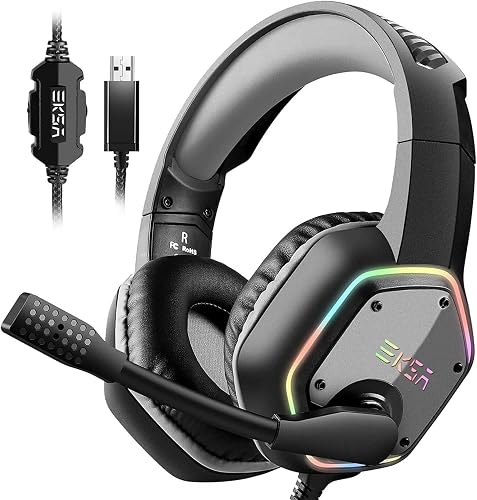
The logitech gaming headset g430 is a wired, budget-friendly option that many players use for PC, console and mobile gaming. This guide walks you through setting it up, adjusting the fit so it stays comfortable through long sessions, and fixing the problems owners most often run into. You will finish with a headset that sounds right, sits right and picks up your voice clearly.
Check What You Need Before Setup
The G430 uses a 3.5 mm TRRS connector, so it plugs directly into most controllers, phones and laptops. A PC or console with a headset jack is enough, though a USB sound card or adapter may be needed for some setups. If you are comparing it with wireless models, the Wireless Headset vs Wired Gaming: Which Should You Choose? (2026) guide explains the trade-offs.
Shopping for one? See our guide: A10 Astro Gaming Headset Review: Features and Performance.
- The G430 headset with its attached boom microphone
- A device with a 3.5 mm headset jack, or a splitter if your device has separate headphone and mic ports
- A quiet room for the first mic test
- About 10 minutes to adjust the fit
Connect the Headset to Your Device
- Plug the single 3.5 mm connector into the headset port on your controller, phone or laptop.
- If your PC has separate green and pink jacks, use a 4-pole splitter or adapter, since a single TRRS plug needs one combined port.
- Open your system sound settings and set the headset as the default playback and recording device.
- Play a test sound and speak into the mic to confirm both directions work.
If the mic does not register, check that the device is set to the correct input and that the mute toggle on the boom is not engaged. The Gaming Headset No Microphone: 5 Ways to Use One Without Losing Voice Chat (2026) article covers more troubleshooting paths for this problem.
Adjust the Fit for Long Sessions
Most comfort complaints with the logitech gaming headset g430 come from the headband sitting too high or the earcups clamping too hard. Start with the headband loose, then tighten it in small steps until the cups seal lightly against your head without pinching. Position the boom so the mic sits about one finger width from the corner of your mouth. For more ideas on reducing fatigue, see Gaming Headset Comfort for Long Sessions.
Tips for Earcup Comfort
Owners often report that the earcup padding flattens over months of use, which can change the seal and bass response. Replacement ear pads are widely available and usually a simple snap-on swap. Check the seal by pressing your palm over the cups; if sound drops sharply on one side, the fit needs adjusting.
Dial In Sound and Mic Quality
The G430 is a stereo headset with a fixed boom mic, so the main controls are your system equaliser and volume balance. Start with a flat EQ, then nudge the midrange if voices sound muddy. Run a voice recording or a party chat test and listen back, since the mic sits close to your mouth and can pick up breath noise if placed too low. If you want to compare how other headsets handle these tradeoffs, the Gaming Headset Best Microphone: 3 Top Picks Compared for 2026 guide is a useful reference.
Recommended Gear
- A 4-pole splitter adapter: Needed for PCs with separate headphone and mic jacks, so the G430 works without a separate microphone. View on Amazon
- Replacement ear pads: Restore the seal and comfort once the original padding wears down. View on Amazon
- A USB audio adapter: Helps when a device has no headset jack or when you need cleaner audio routing. View on Amazon
Common Mistakes
- Plugging the headset into a standard headphone jack and expecting the mic to work.
- Leaving the headband too tight, which causes pressure points after an hour or two.
- Placing the boom mic too low, so breath and keyboard noise dominate your voice.
- Ignoring the system default device settings after switching between PC and console.
- Assuming a loud sound problem is hardware when a volume limiter or game setting is responsible.
FAQ
Does the logitech gaming headset g430 work with consoles?
It works with consoles that have a 3.5 mm headset jack, such as many PlayStation and Xbox controllers. Check your console’s manual for the exact port layout before you plug in.
Why does my mic sound quiet on the logitech g430 gaming headset?
Low mic input is usually a system setting, not a fault. Raise the input level in your sound panel and make sure the boom is positioned close to your mouth.
Can I replace the ear pads on the G430?
Yes, replacement pads are sold separately and typically snap or slide onto the earcups. Measure your existing pads or check the model details before ordering.
Conclusion
With the right connection, a careful fit and a quick mic test, the logitech gaming headset g430 can serve well for daily gaming. Take a few minutes to adjust the headband and boom, and replace the ear pads when the seal starts to fade. If problems continue, check your device’s sound settings and the manufacturer’s support pages for current guidance.
Ready to choose one?
About Colin Foster
Colin Foster is part of our editorial team and reviews and edits our headphone comfort & accessories + gaming headsets guides, checking product details against manufacturer specifications and owner feedback.