 By Colin Foster
Updated November 2026
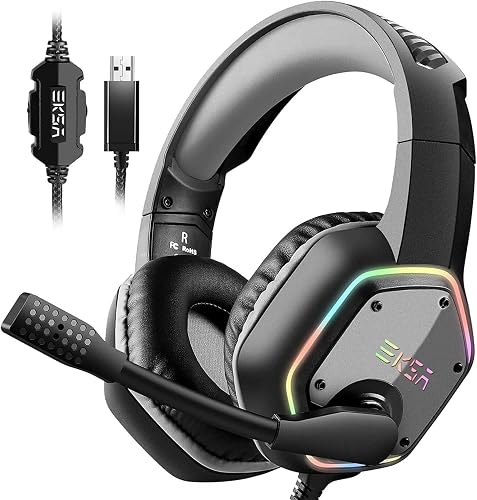
A gaming headset PC with microphone combines audio output and voice input in one device, so you can hear your game and talk to your team without juggling separate gear. This guide walks you through the factors that decide whether a headset will sound good, stay comfortable, and pick up your voice clearly on your PC. By the end, you will know exactly what to check before you buy.
Step 1: Choose the Right Connection Type
Your first decision is how the headset connects to your computer. USB headsets plug in directly, bypass your motherboard’s audio chip, and usually include their own sound processing. Analog headsets use a 3.5 mm TRRS plug, which carries both audio and mic signal through one jack, but many PC motherboards have separate headphone and mic jacks that need a splitter. Wireless models use a 2.4 GHz USB dongle or Bluetooth. If you are weighing those options, see Wireless Headset vs Wired Gaming: Which Should You Choose? (2026).
Shopping for one? See our guide: 5 Best Headset Gamings for PC Picks for Every Setup in 2026.
Step 2: Check the Microphone Type and Placement
Most gaming headsets use one of two mic designs. Boom mics extend on an arm from the earcup and are the most common choice for voice chat. Retractable mics tuck into the earcup when not needed, which suits people who game alone part of the time. Look for a noise-canceling or cardioid pickup pattern, which focuses on your voice and reduces background noise like keyboard clicks. Some owners report that a mic placed about a finger’s width from the corner of the mouth gives the cleanest voice, so test positioning before a match.
Step 3: Confirm Comfort and Fit
A headset you cannot wear for two hours is a poor buy, no matter how good the sound is. Check the headband clamp force, the earcup padding material, and whether the earcups are over-ear or on-ear. Manufacturers often specify adjustment range and weight, and lighter headsets with breathable pads tend to be easier on long sessions. For more on this, read Gaming Headset Comfort for Long Sessions.
Step 4: Verify Sound and Mic Compatibility
Confirm that the headset works with your operating system and game chat apps. Check whether the mic appears as a separate input device in your sound settings, and whether the headset supports 7.1 virtual surround or stereo only. If you plan to use a headset with a console later, confirm that too. Our roundup PC Gaming Headset Recommendations: 6 Factors and Picks for 2026 covers compatibility details in more depth.
Quick Pre-Purchase Checklist
- Connection type matches your PC ports (USB, 3.5 mm TRRS, or wireless dongle).
- Mic type suits your habits (boom or retractable) and has noise cancellation.
- Earcup style and padding fit your head and sessions.
- Headset works with your OS and voice chat software.
- You have a plan for splitters or adapters if your PC has separate jacks.
Common Mistakes to Avoid
- Buying a TRRS headset without checking whether your motherboard has a combo jack.
- Ignoring mic placement, which affects voice clarity more than most buyers expect.
- Choosing based only on surround claims rather than comfort and mic quality.
- Forgetting to select the headset as the mic input in your sound settings.
Recommended Gear
A headphone jack splitter helps when your PC has separate audio and mic ports and your headset uses a single TRRS plug. View on Amazon
Ear pad replacements can refresh the fit and comfort of an older headset that still has good audio. View on Amazon
A boom mic foam windscreen cuts down on breath pops and room noise during voice chat. View on Amazon
FAQ
Do I need a USB or 3.5 mm headset for a PC?
USB headsets are the simplest choice for most PCs because they avoid jack compatibility issues. A 3.5 mm headset works well if your motherboard has a combo jack or if you use a splitter.
Why does my mic sound quiet or distorted?
Check that the correct input device is selected in your sound settings and that the mic gain is not set too high. Adjusting mic position and turning on noise cancellation often helps.
Can I use a gaming headset PC with microphone on a console?
Some headsets support both, but many are designed for one platform. Check the manufacturer’s compatibility list before buying, and consult the manufacturer for specific cable or adapter needs.
Conclusion
A good gaming headset PC with microphone matches your connection type, mic style, and comfort needs. Work through the checklist before you buy, and test mic placement once it arrives. A few minutes of setup will make voice chat clearer for every session.
Ready to choose one?
About Colin Foster
Colin Foster is part of our editorial team and reviews and edits our headphone comfort & accessories + gaming headsets guides, checking product details against manufacturer specifications and owner feedback.