 By Colin Foster
Updated November 2026
A wireless gaming headset PlayStation setup works best when you match the headset’s connection method to your console, set the audio mode correctly and check fit for long sessions. This guide walks you through those choices so you can pair a headset that sounds right, stays comfortable and keeps your voice chat clear.
Step 1: Confirm the Connection Method
Most wireless headsets for PlayStation use one of two methods. The first is a USB dongle or transmitter that plugs into a console USB port and delivers low-latency audio. The second is Bluetooth, which is convenient for phones and some controllers but often adds more delay and may not support voice chat on every console. For competitive shooters and fast action games, a dedicated 2.4 GHz wireless connection is the safer choice.
Shopping for one? See our guide: Audeze Maxwell Wireless Gaming Headset Review (2026).
Before you buy, check the manufacturer’s listing for the exact PlayStation models it supports. Some headsets need a PlayStation-specific dongle or a separate adapter, and the feature list will say so. If you are still weighing options, our guide Wireless Headset vs Wired Gaming: Which Should You Choose? (2026) covers the tradeoffs in more detail.
Step 2: Set Up Audio and Chat Balance
Once paired, open the console’s sound settings and set the headset as your output device for both game audio and party chat. Many PlayStation users miss the chat balance slider, which lets you blend game sound with voices. Start with the slider near the middle, then adjust so footsteps and voice chat both stay audible without one drowning out the other.
- Open Settings, then Sound and Screen, then Audio Devices.
- Set Output to Headphones and choose the headset as the output device.
- Set Input Device to the headset microphone.
- Adjust the chat-to-game balance slider until both sound clear.
- Run the microphone test and speak at normal volume to check levels.
Step 3: Check Fit and Comfort for Long Sessions
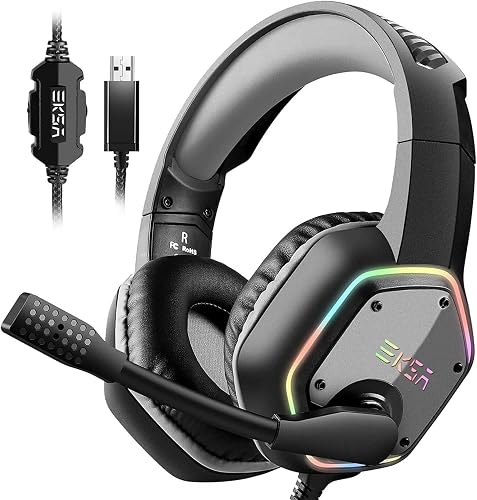
A headset that sounds great but squeezes your head will end up off your ears within an hour. Check the headband clamp, since many owners report that tight headbands cause pressure after a few hours. Look for padded earcups large enough to fully surround your ears, and make sure the cushions are replaceable. Replacement ear pads are a low-cost way to refresh comfort and seal over time. For more on this, see Gaming Headset Comfort for Long Sessions.
Step 4: Set Up the Microphone Properly
A headset mic only helps if it is positioned correctly. Most boom mics should sit about one finger-width from the corner of your mouth, slightly below the lip line, so breath noise stays low. If your headset has a detachable mic, check the mute indicator and test it with a party before a match. Mic placement problems are among the most common reasons teammates complain about audio, and a quick test can prevent them.
Common Mistakes to Avoid
- Buying a Bluetooth-only headset when you need low-latency voice chat.
- Skipping the chat balance slider and leaving game audio too loud or too quiet.
- Forgetting to set the input device, which leaves your mic silent.
- Ignoring headband pressure until it causes discomfort.
- Charging the headset only after it dies mid-session. Keep a charging cable within reach.
Recommended Gear
- Replacement ear pads: Fresh cushions improve seal and comfort, and they are often sold separately for popular headset models. View on Amazon
- Headset stand: A stand keeps the headset off the desk and protects the earcups from dust and bending. View on Amazon
- USB extension cable: A short extension lets you place the wireless dongle closer to your console for a more stable connection. View on Amazon
FAQ
Does a wireless gaming headset work with every PlayStation model?
Not always. Check the manufacturer listing for the specific PlayStation models and whether a USB dongle is included, since compatibility varies by brand.
Can I use Bluetooth for voice chat on PlayStation?
Support for Bluetooth voice chat depends on the console model and the headset. Many players prefer a dedicated wireless connection for more reliable audio and chat.
How do I know if my headset mic is working?
Use the console’s microphone test in the audio settings and speak at normal volume while watching the level meter. If the meter does not move, check that the headset is selected as the input device.
Conclusion
Choosing a wireless gaming headset for PlayStation comes down to connection type, correct audio and chat settings, comfortable fit and a properly placed mic. Work through each step before your next session and you will avoid most common setup problems. For more on matching a headset to your setup, see Wireless Gaming Headset Computer Setup: A Step-by-Step Guide (2026).
Ready to choose one?
About Colin Foster
Colin Foster is part of our editorial team and reviews and edits our headphone comfort & accessories + gaming headsets guides, checking product details against manufacturer specifications and owner feedback.