 By Claire Whitaker
Updated November 2026
If your iPhone headphone adapter not working, the fix is usually one of a few things: a dirty or loose connection, a damaged adapter, a software setting that routes audio elsewhere, or headphones that are not fully seated. This guide walks through each check in order, starting with the quickest fixes, so you can narrow down the cause and get sound back without replacing anything you don’t need to.
Start With a Physical Check
Most adapter failures come down to the connection itself. Lightning and USB-C ports collect lint and pocket debris, and a partly seated plug can produce silence in one ear or crackling when you move the cable.
Shopping for one? See our guide: 6 Best Lightning to 3.5mm Headphone Jack Adapters for iPhone (2026).
- Unplug the adapter from the iPhone and inspect the port with a flashlight. Look for lint, grit, or bent pins.
- Clear debris with a dry wooden or plastic toothpick. Avoid metal tools, which can short contacts.
- Reseat the adapter firmly until it clicks or stops moving. Then plug your headphones into the adapter and push until the plug is fully inserted.
- Wiggle the cable gently at the adapter and at the headphone plug. If audio cuts in and out, the problem is likely a worn cable or internal break.
Test the Adapter and Headphones Separately
Before blaming the iPhone, confirm which component has failed. Connect the same headphones to a different device, such as a laptop or an older phone with a 3.5mm jack. If they work there, the adapter is the likely culprit. If they fail everywhere, the headphones or their cable need attention.
Next, try the adapter with a different pair of headphones. Adapters with built-in digital-to-analog converters can behave differently from simple passthrough adapters, so note which type you own. Many owners report that a passthrough adapter works only with certain headphone impedances, while a DAC-based model handles a wider range. A related read: 7 Best Type-C to 3.5 Mm Headphone Jack Adapter Picks for 2026.
Check iPhone Audio Settings
Software settings can make a working adapter appear broken. Check these in order:
- Audio output: Open Control Center and tap the audio card in the top corner. Make sure the output is set to your headphones, not AirPods or a speaker.
- Mono audio: Go to Settings, then Accessibility, then Audio/Visual, and check whether Mono Audio is on. Turning it off restores stereo separation if one earpiece is silent.
- Volume limit: In Settings, open Sounds & Haptics, then Headphone Safety, and confirm no limit is blocking output.
- Restart: Force-restart the iPhone with the method for your model. A restart clears stuck audio routing more often than people expect.
Address Calls and Microphone Problems
If the adapter plays music but fails on calls, the microphone line is the issue. Many 3.5mm adapters carry a four-ring plug with a separate mic contact, and some simple adapters omit it entirely. Confirm your adapter supports a microphone before troubleshooting further. For a dedicated walkthrough of call problems, see iPhone Headphone Adapter Not Working on Calls: 7 Fixes That Work.
If your adapter is a more involved model, you may also find Why Is My Headphone Adapter Not Working? A Step-by-Step Fix Guide useful for general troubleshooting across adapter types.
Recommended gear
- Anti-static cleaning brush for phone ports: A narrow brush helps remove lint without scratching contacts. View on Amazon
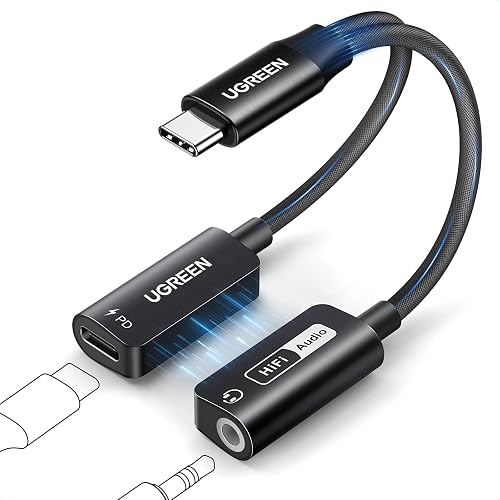
- Replacement Lightning to 3.5mm adapter: Useful for confirming whether the current adapter has failed. View on Amazon
Common Mistakes
- Inserting a metal pin or paperclip into the port, which can damage contacts.
- Assuming the iPhone is faulty before testing the adapter with other devices.
- Forgetting that a passthrough adapter may not support every headphone type.
- Overlooking Mono Audio, which makes one earpiece seem dead.
- Pulling on the cable instead of the plug when disconnecting.
FAQ
Why does my adapter work for music but not calls?
The adapter may lack a microphone connection, or the headphones may not include a mic. Check that the adapter and headphones both support a mic line.
Can a dirty port really stop the adapter from working?
Yes. Lint and debris can block the contacts and cause intermittent or silent audio. Clean the port gently with a non-metal tool.
When should I replace the adapter?
Replace it if it fails with multiple headphones on multiple devices, or if the cable shows visible damage. Persistent crackling after cleaning often points to internal wear.
Conclusion
Work through the physical checks first, then test the adapter and headphones separately, then review iPhone audio settings. Most adapter problems are resolved by one of these steps. If none of them restores sound, the adapter has likely reached the end of its life, and a fresh one will solve the issue.
Related reading
- USB-C Headphone Adapter Not Working Samsung S22: 6 Fixes That Work
- USB C Headphone Adapter Not Working: 7 Fixes That Work
Ready to choose one?
About Claire Whitaker
Claire Whitaker is part of our editorial team and reviews and edits our headphone comfort & accessories + gaming headsets guides, checking product details against manufacturer specifications and owner feedback.